You know the subject but need to explain the scene.
Text Prompt: Turn a Rough Idea into a Clear Brief
Use text prompt input and prompt enhancement to refine your image brief. Move from a loose idea to a prompt you can review.
Sunburst Image · GPT Image 2.5
GPT Image 2.5 is OpenAI’s image model family, released September 8, 2026. Turn your prompt or reference images into a product scene, social creative, or campaign concept with Sunburst Image.
Sign in and write a line or two first — Enhance rewrites what you have.
Give your idea a clear subject and setting. Guide GPT Image 2.5 with your own details, then inspect the result for your next draft.
Use text prompt input and prompt enhancement to refine your image brief. Move from a loose idea to a prompt you can review.
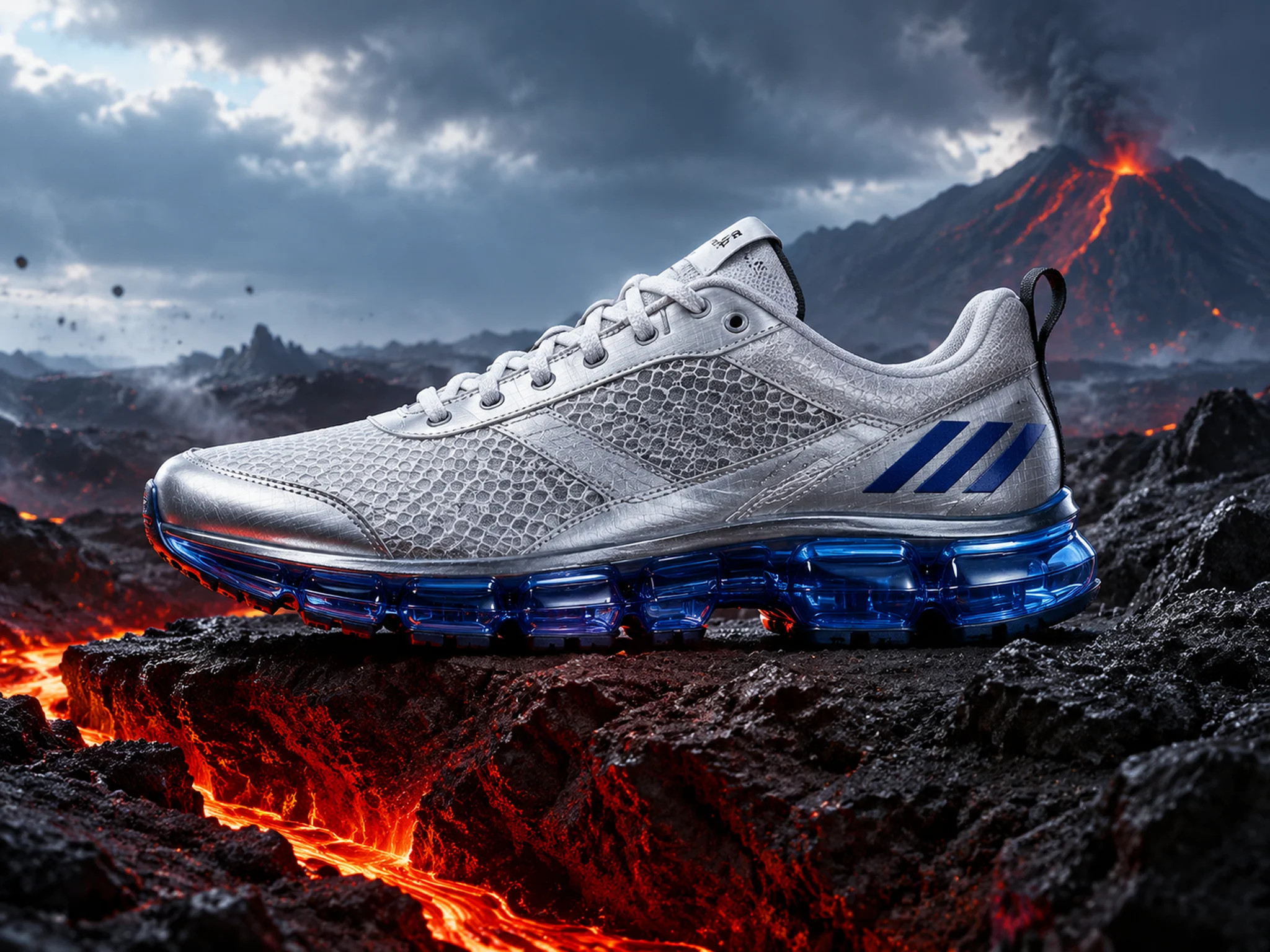
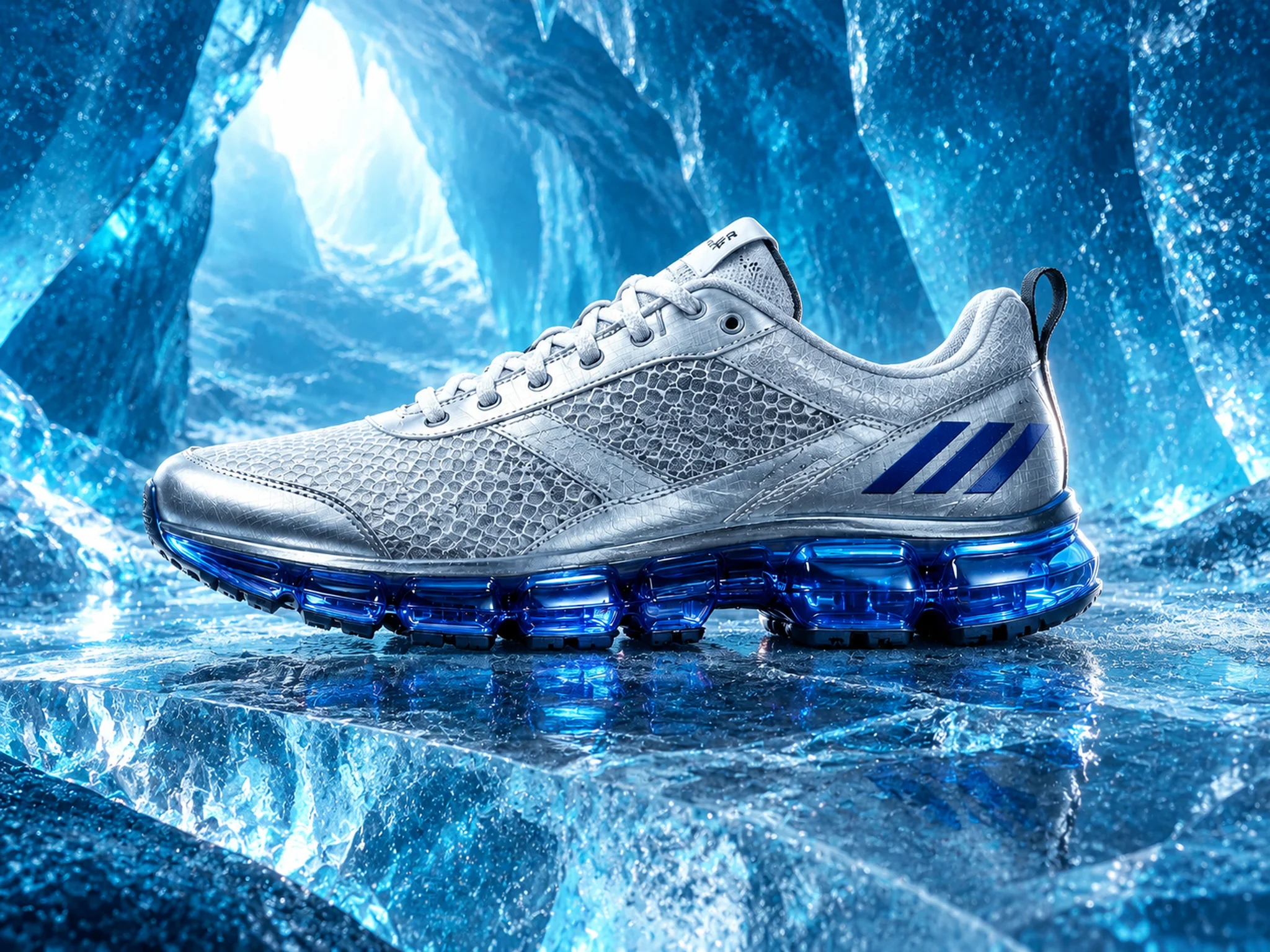
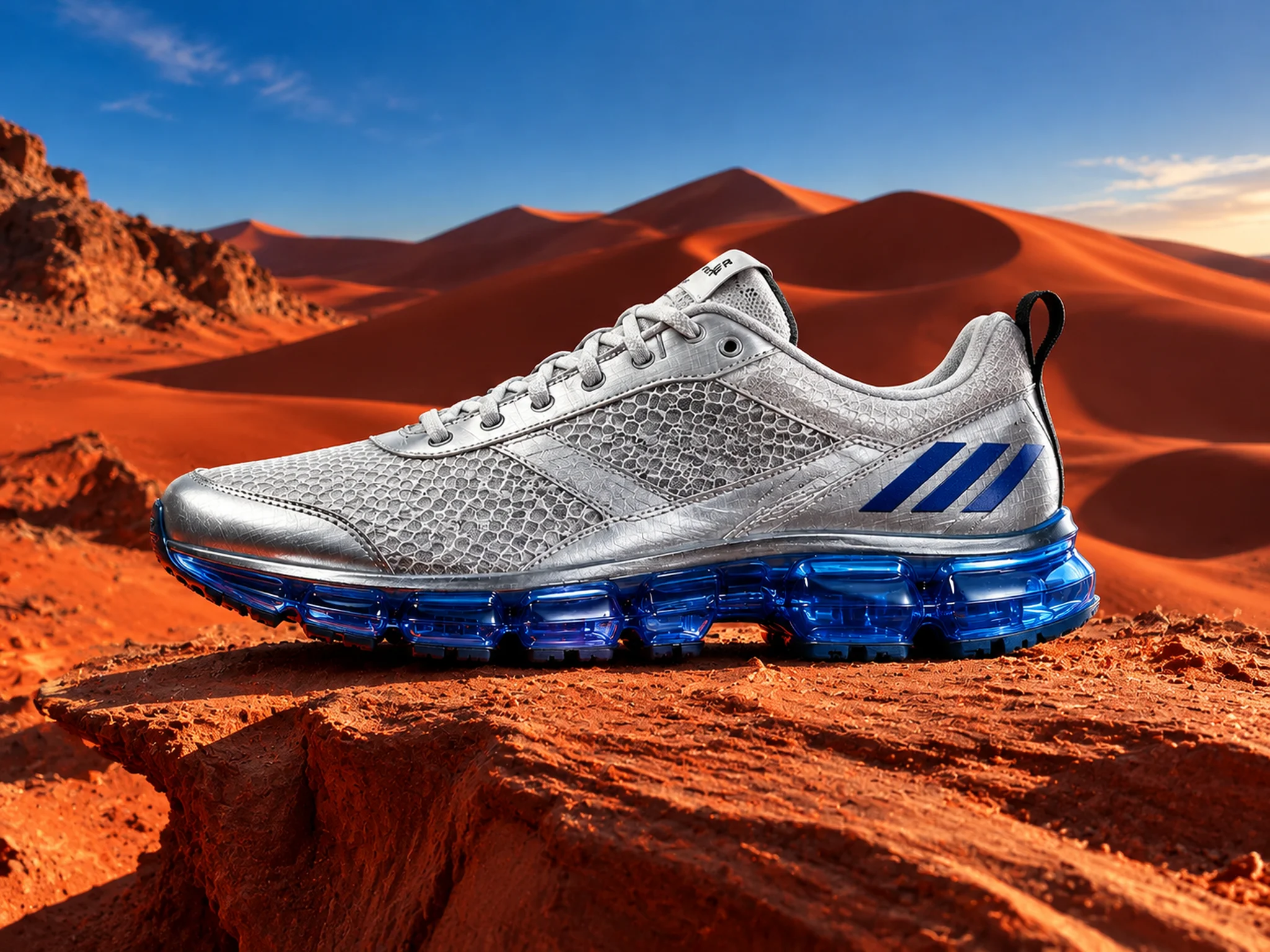
Upload reference images and describe the changes you want in plain language. Keep your source beside the instructions for your next image.
Use image preview and download to inspect and save your output. Take a generated draft into your own review process.
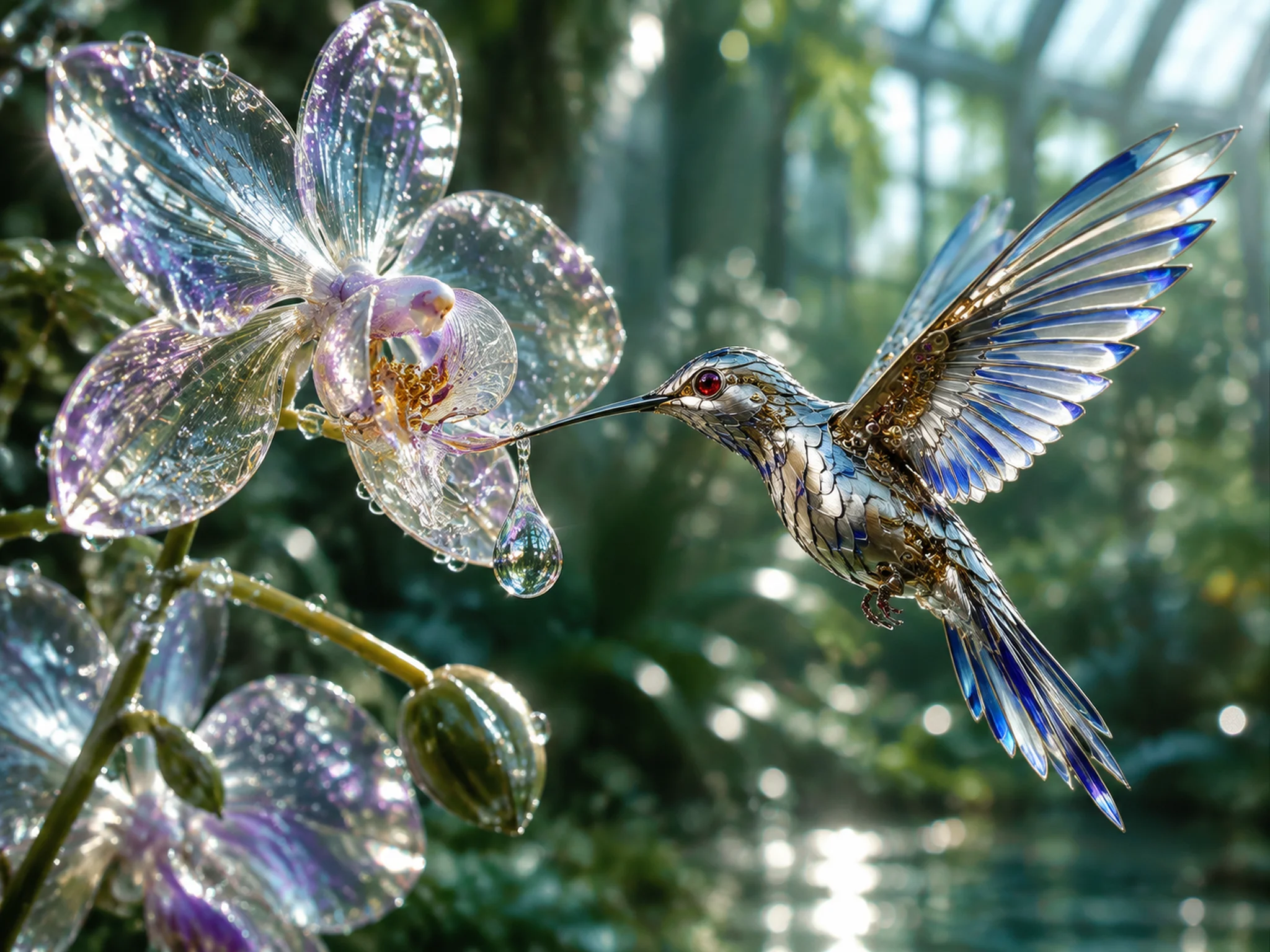
Review your credit balance and estimated cost beside Generate. Decide whether to run the image before spending credits.
Typography, light, intricate worlds, and illustrated stories. These are our own GPT Image 2.5 generations.
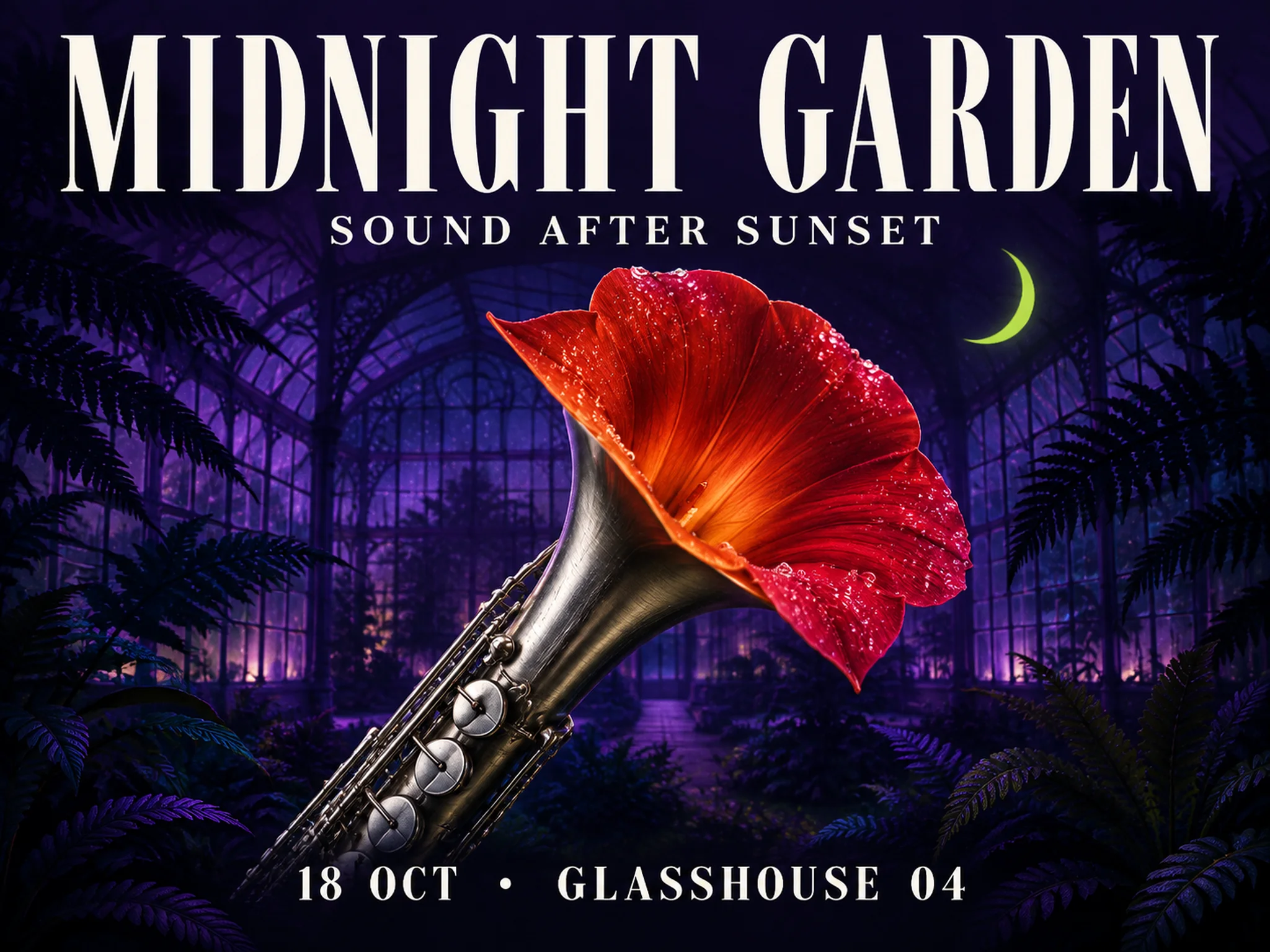
Three exact lines of event copy, photographic detail, and a deliberately composed music poster.
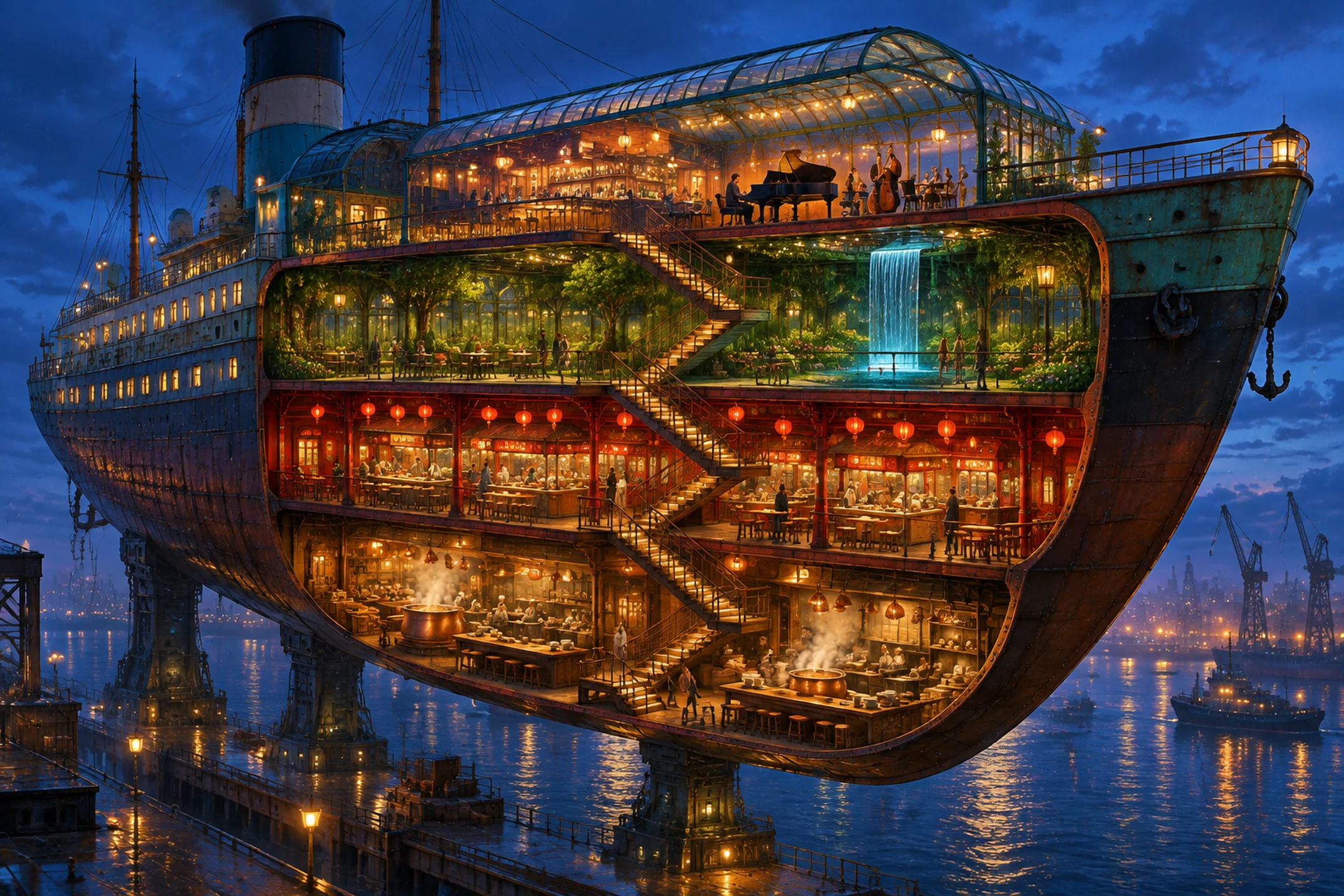
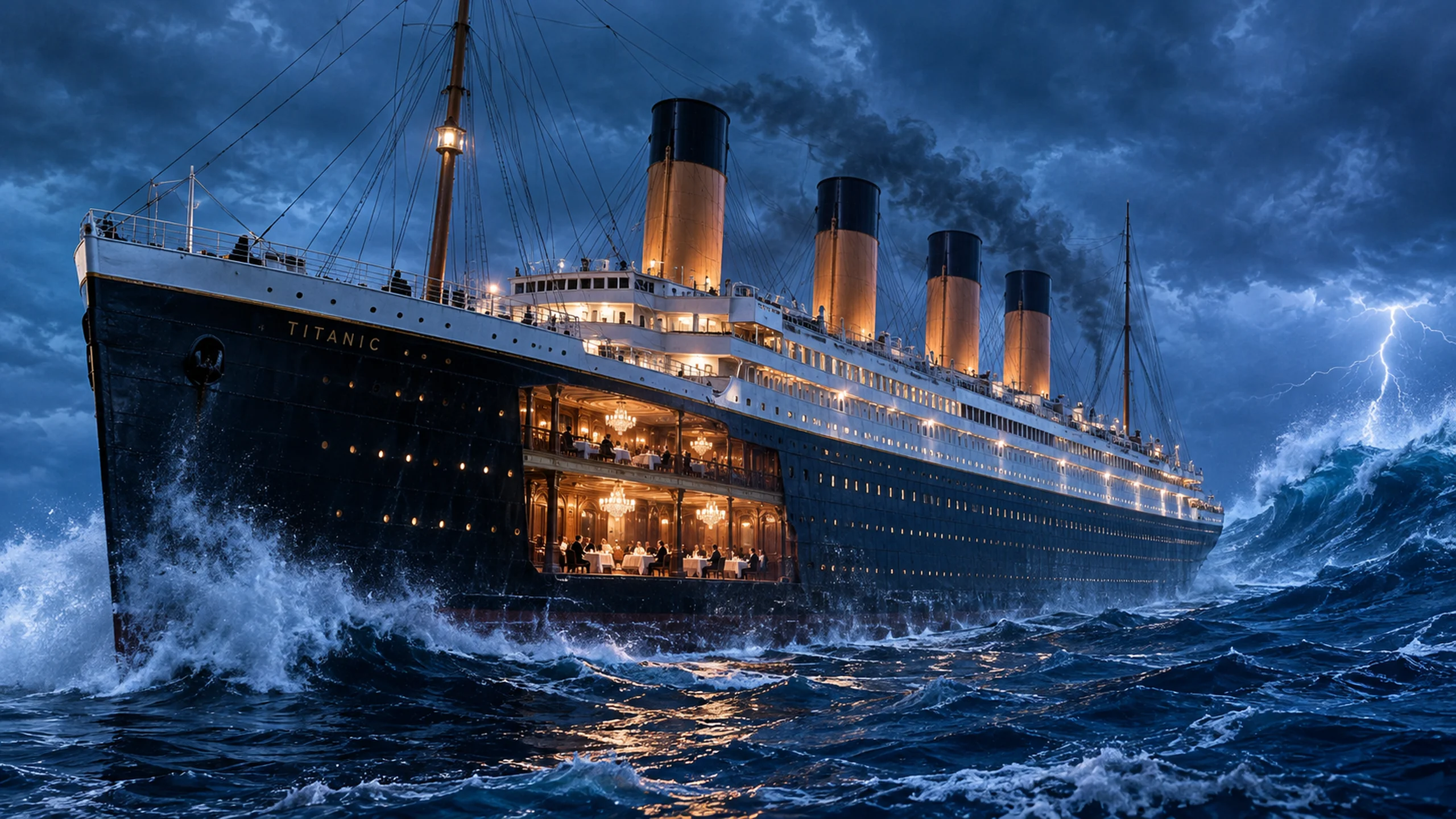
Four distinct decks inside a suspended ocean liner: kitchen, lantern market, garden, and jazz bar. One scene brings together many instructions, materials, and sources of light.
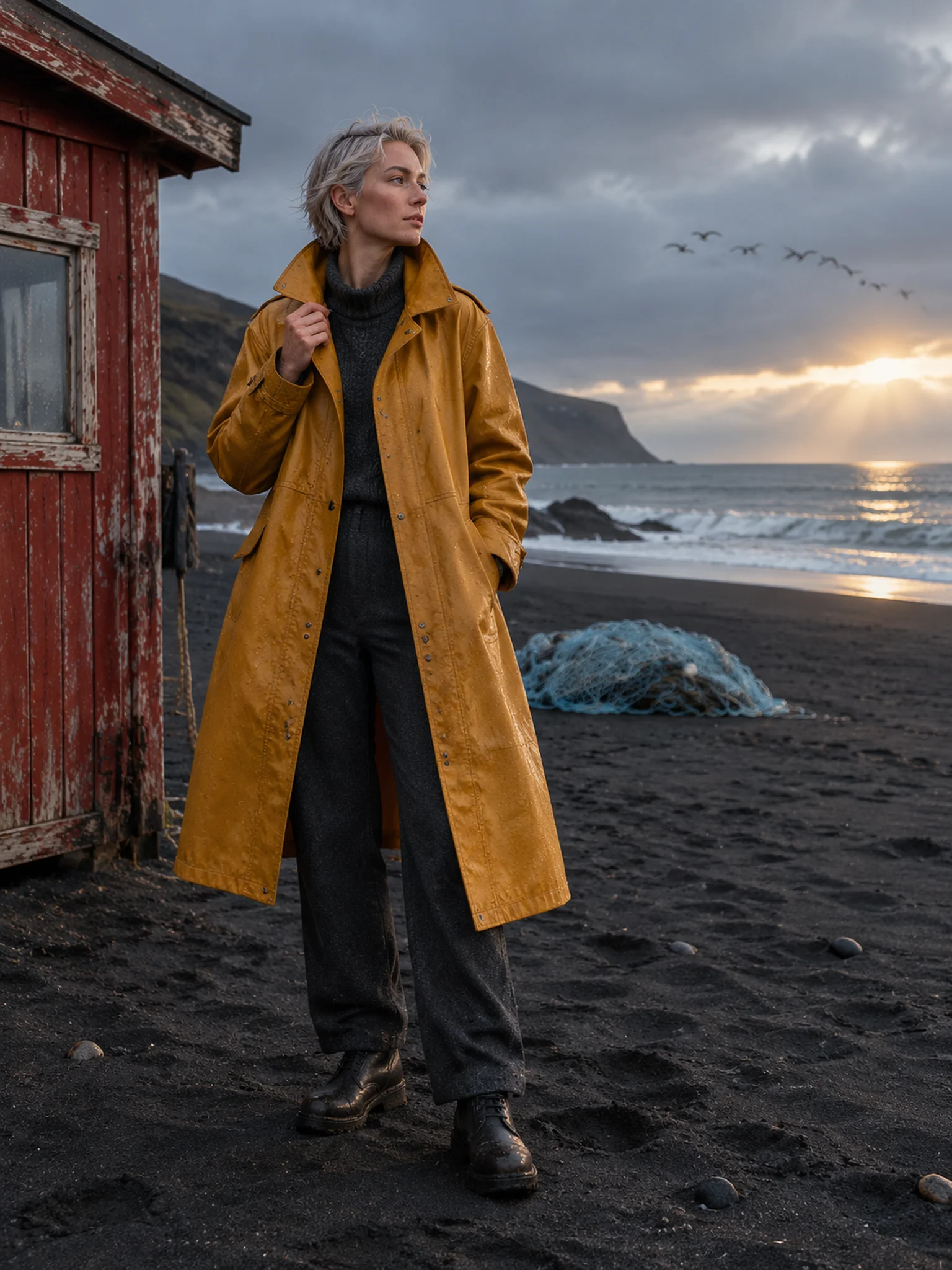
Waxed cotton, knitwear, natural skin, and rain-soaked sand each have their own texture in this fictional fashion editorial.
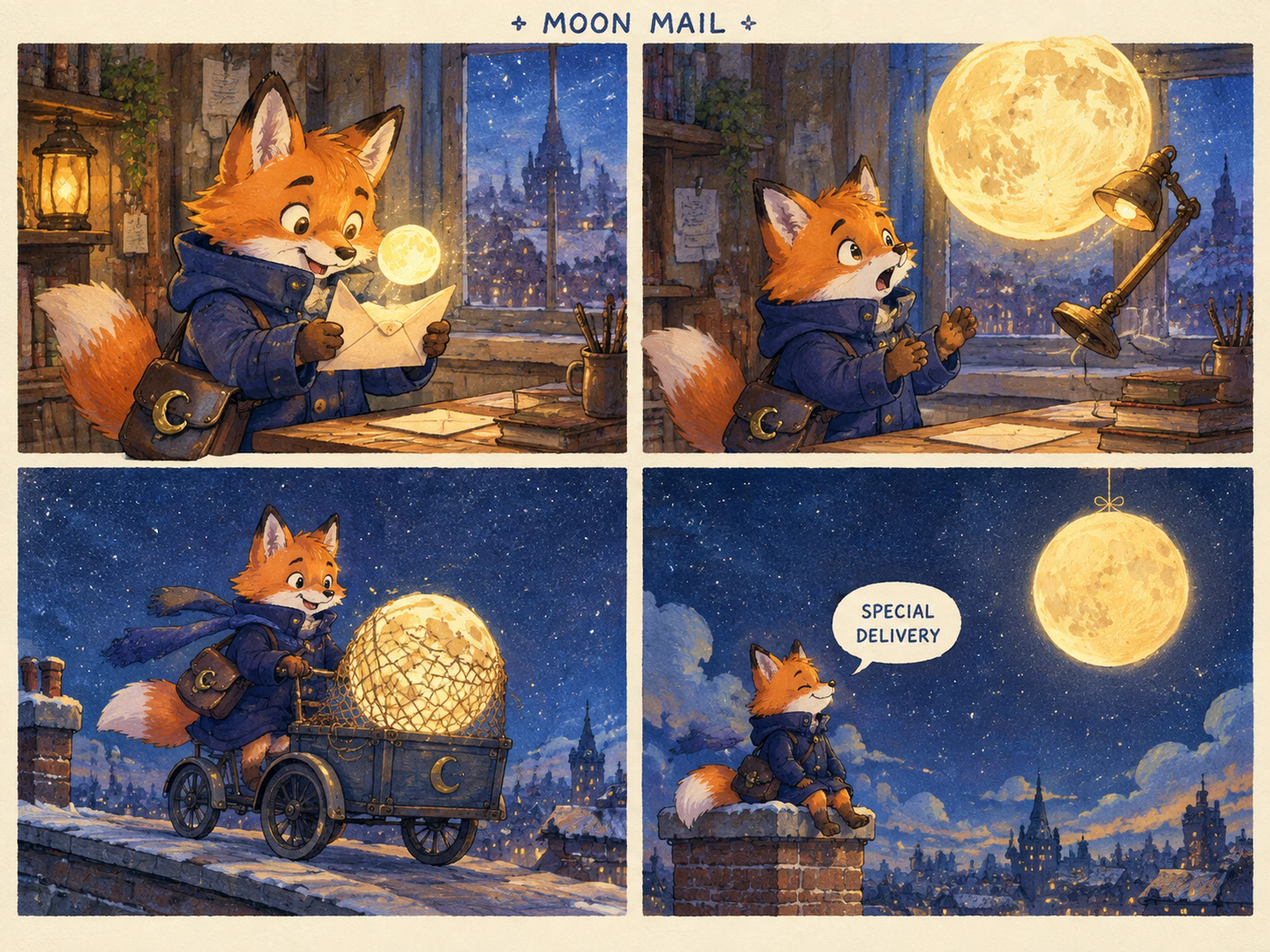
An original illustrated story keeps the same fox courier recognizable as the scene changes from desk to rooftop.
Original examples generated through our configured provider, not official OpenAI artwork. Outputs vary; inspect text and details before use.
Keep the prompt-and-reference workflow you know, with improvements to image detail, subject fidelity, and editing control reported by OpenAI.
| Creative task | GPT Image 2 | GPT Image 2.5 |
|---|---|---|
| Lighting and texture | Creates images from your visual brief. | More natural lighting and richer textures. |
| Reference subject fidelity | Uses reference images to guide generation. | Better preserves recognizable subjects and distinctive features. |
| Focused image edits | Edits images using text instructions. | More precisely changes the requested elements while retaining surrounding details. |
| Complex creative briefs | Follows prompts for style and composition. | Better handles detailed instructions, visual styles, and complex layouts. |
Model improvements described by OpenAI; results depend on your prompt and references. These are not Sunburst Image benchmark results. Read OpenAI’s release notes
Bring a real brief to your next creative review. Make an AI image for a product listing, social post, or campaign mood board.
Explore a visual direction for a product listing. Bring a product reference and describe a tabletop scene to create a listing-image draft.
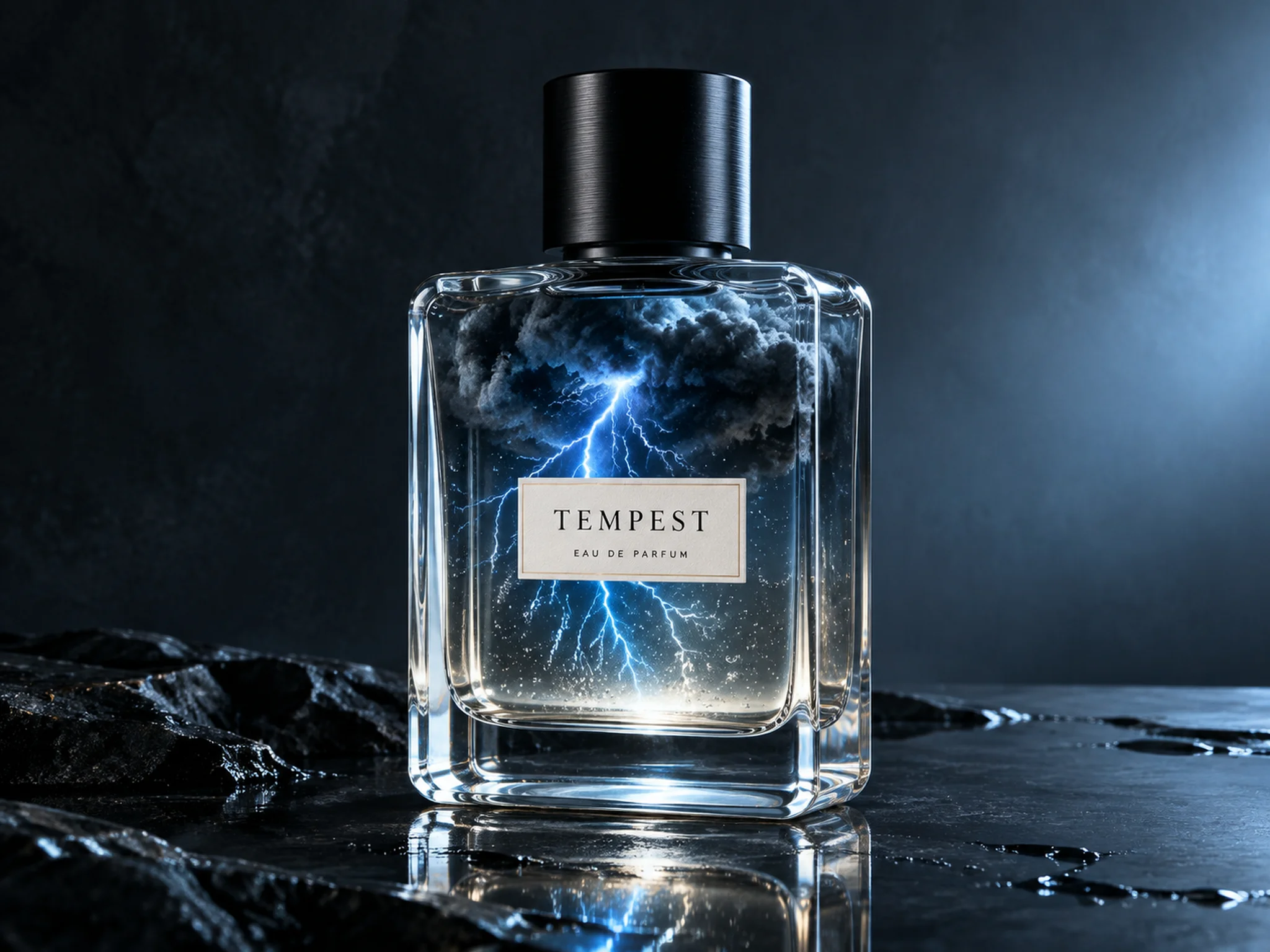
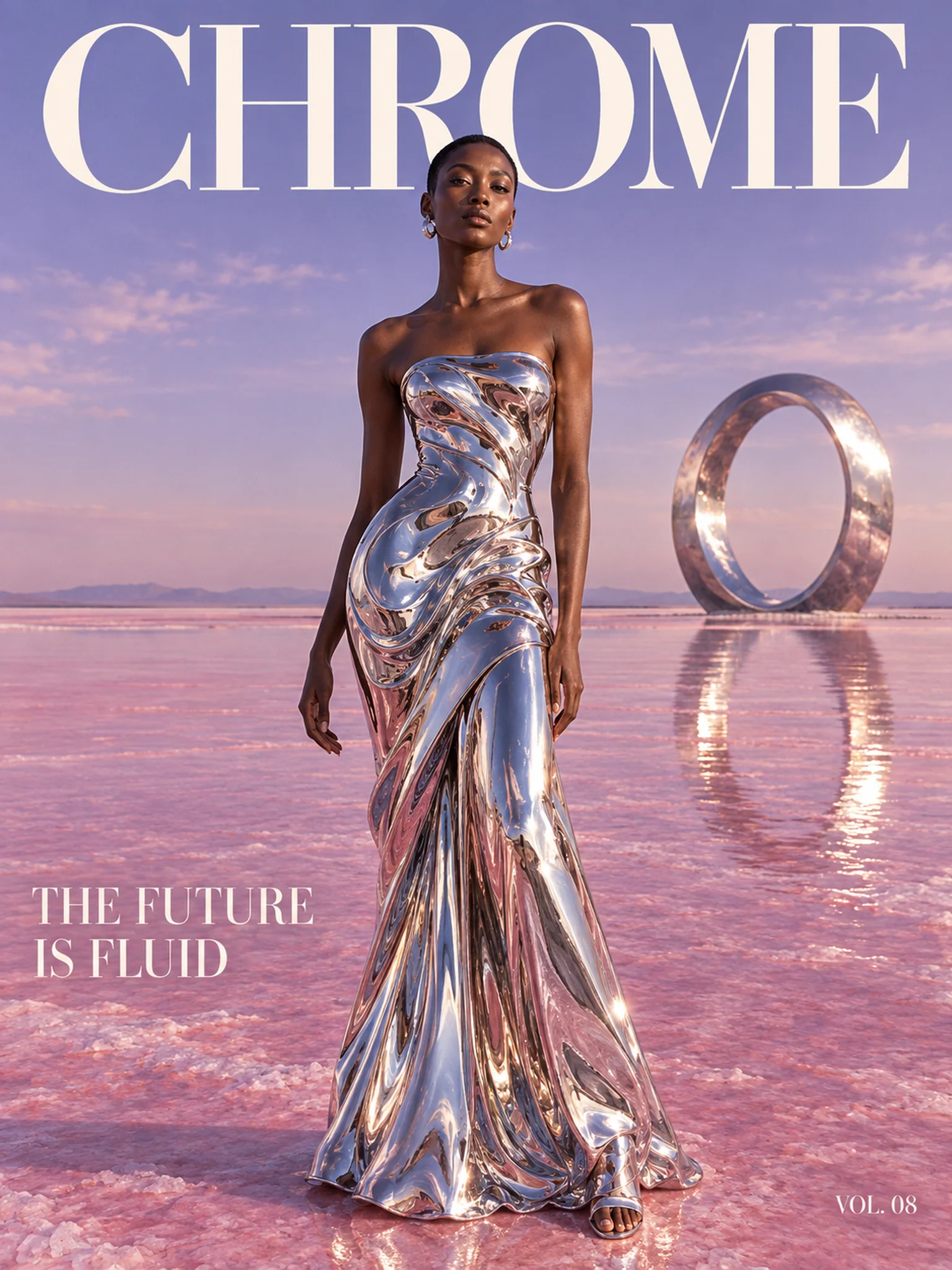
Develop a visual concept for a social post. Describe your subject, colors, and setting to create an Instagram post concept you can review.
Communicate a campaign concept to reviewers. Turn a campaign brief into a mood-board image so your team has a visual starting point.
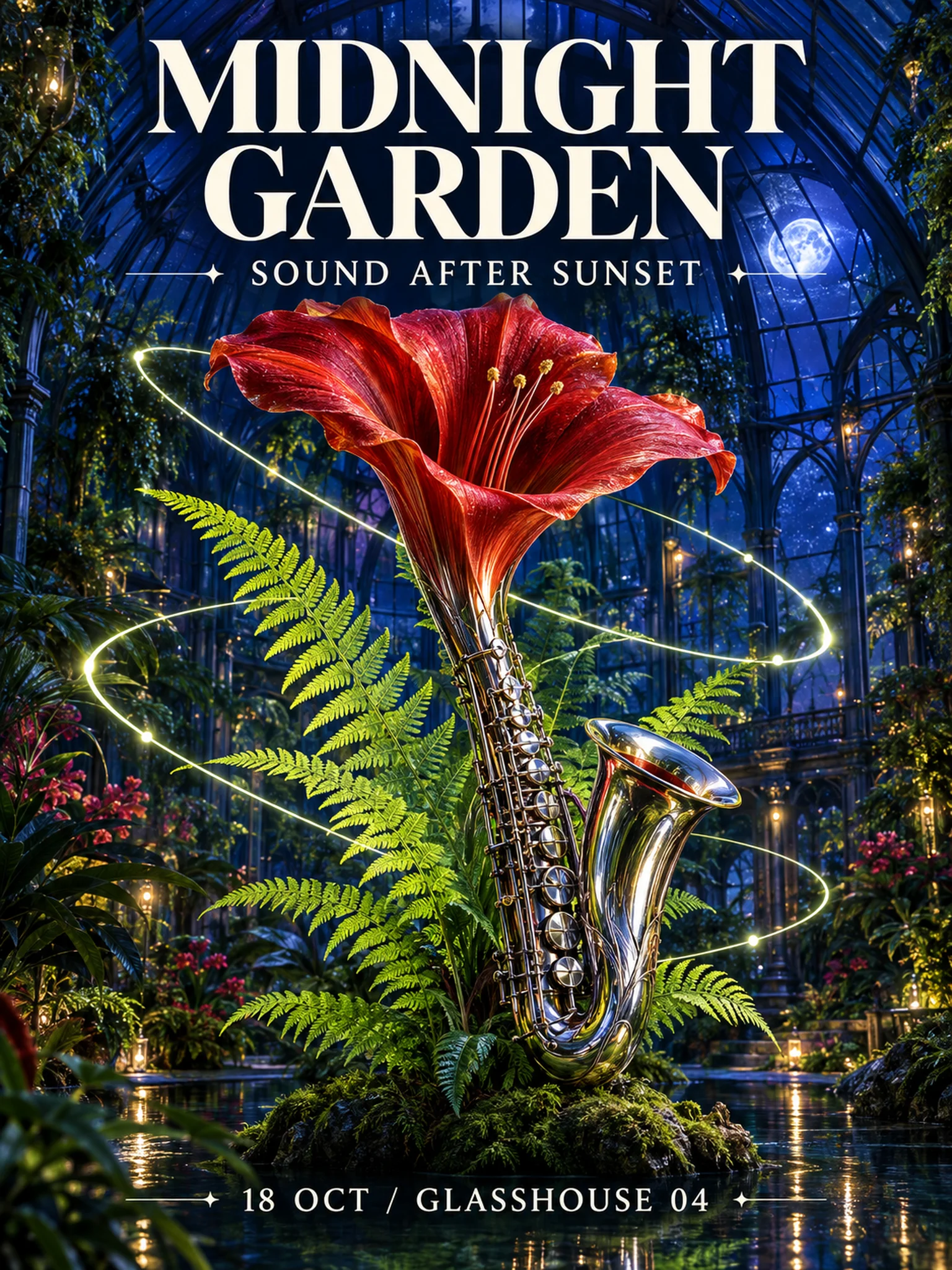
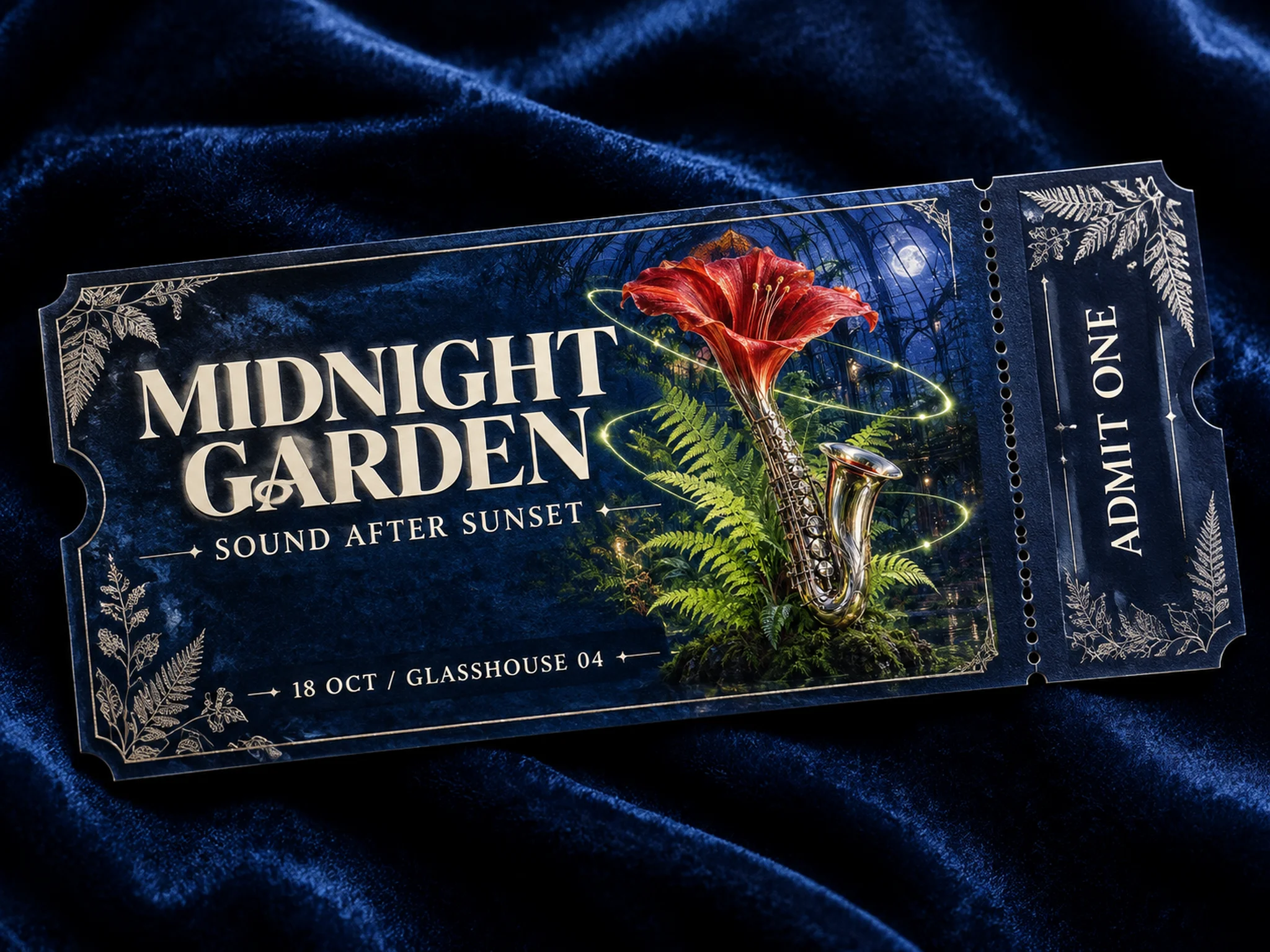
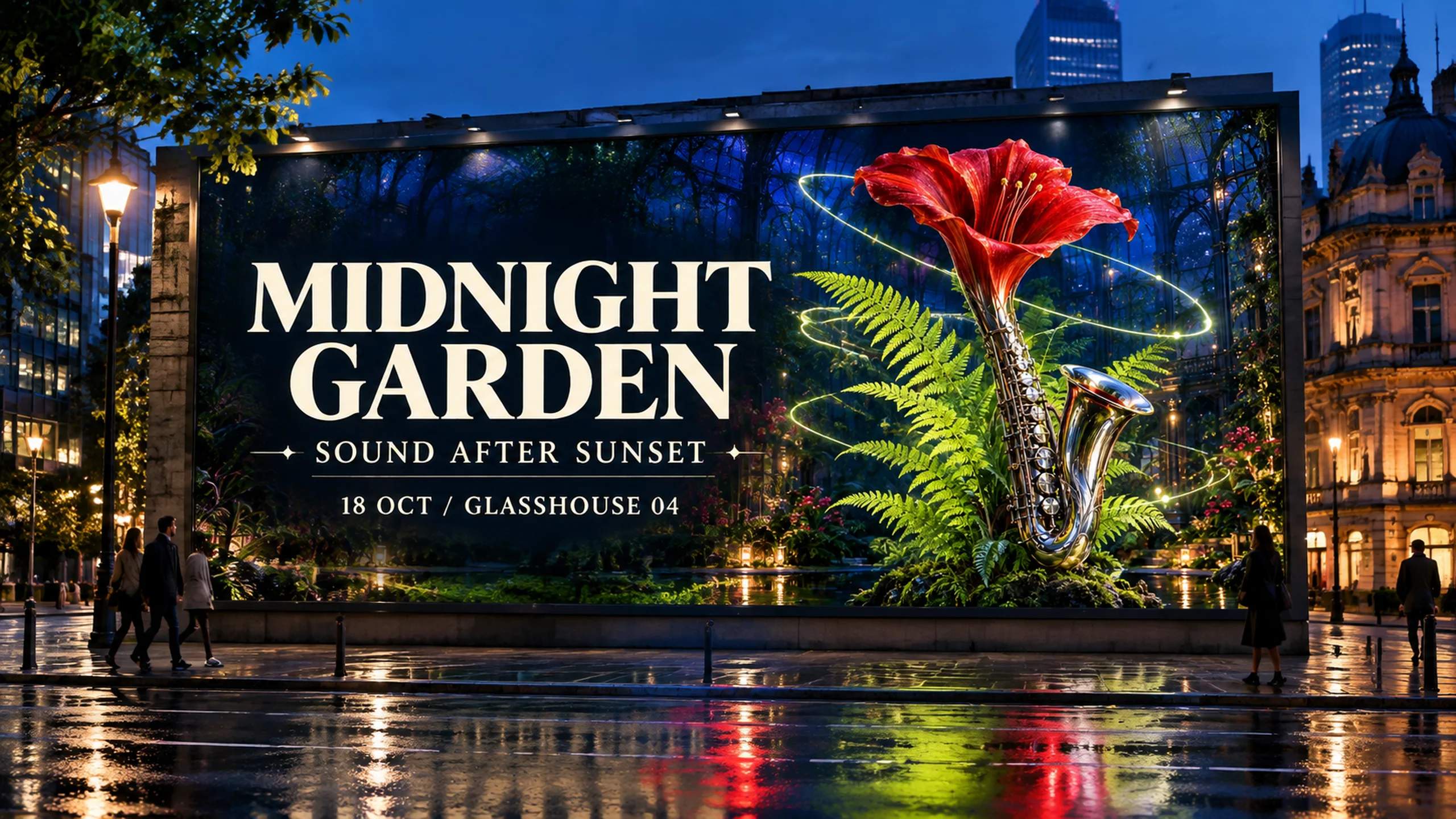
One campaign image, two successive edits. Each edit uses the actual output of the previous step as its reference.
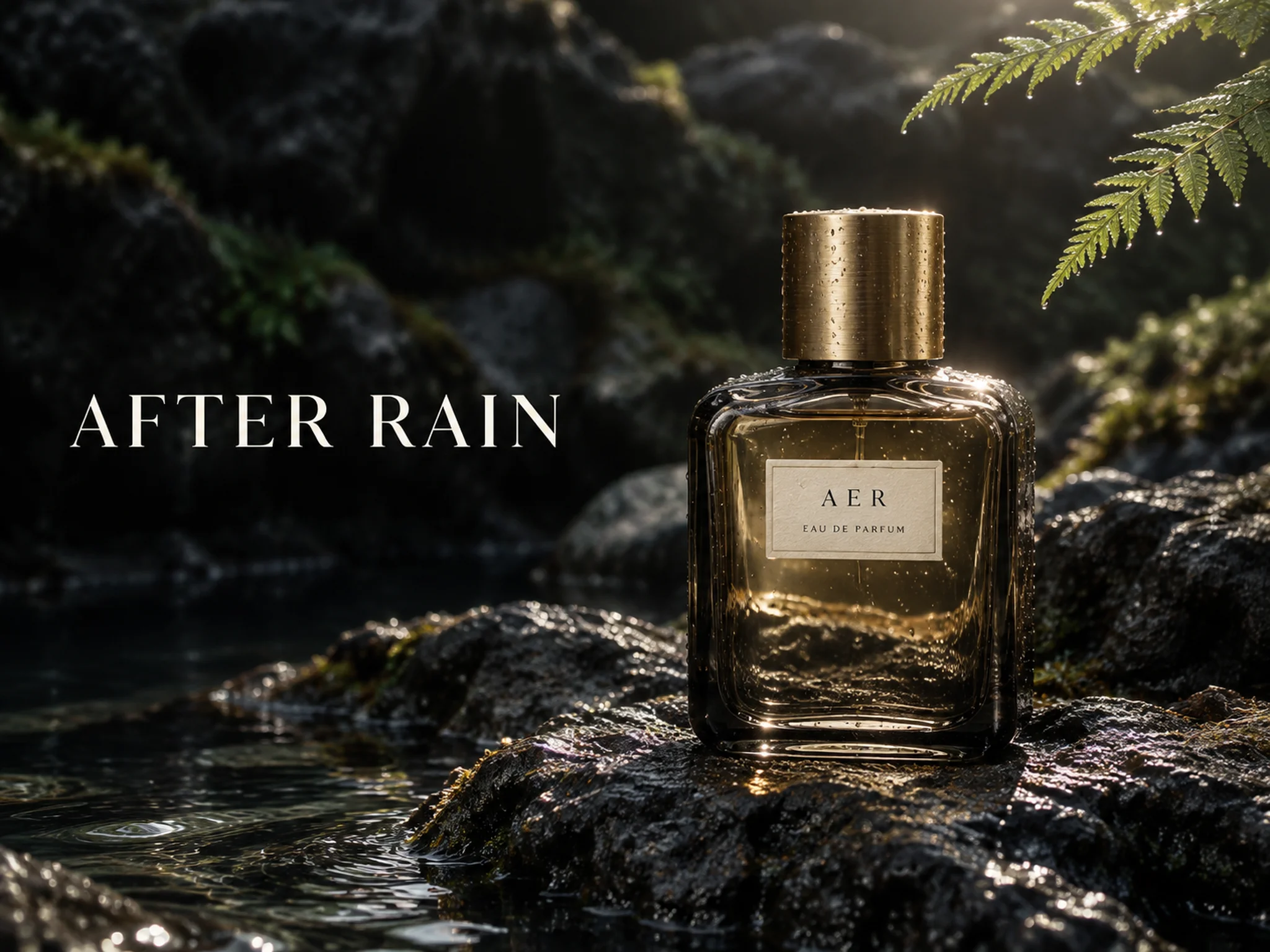
A text prompt creates the fragrance image, including the bottle label, pale amber liquid, and AFTER RAIN headline.
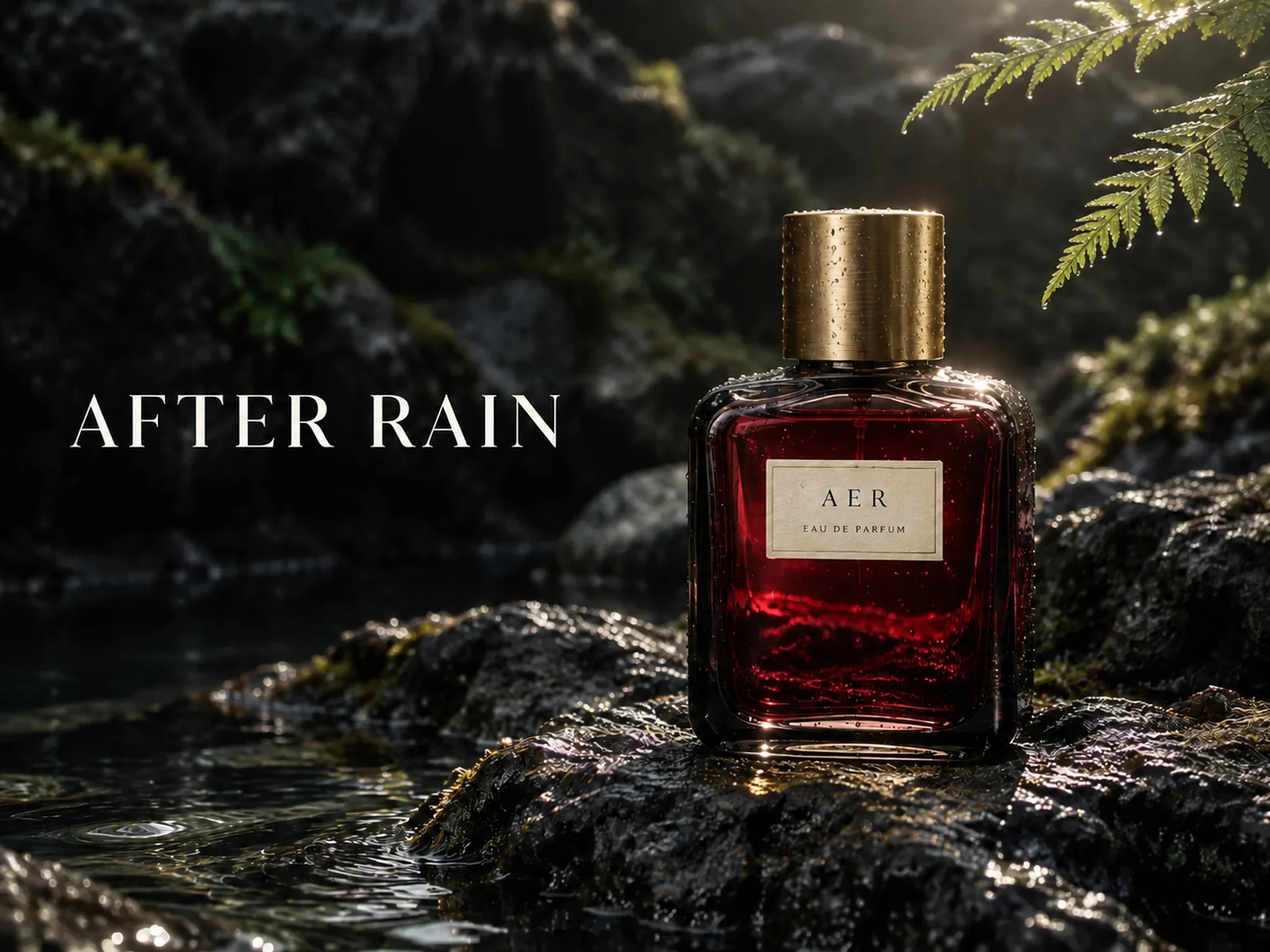
The previous output is the reference. The edit asks for red perfume liquid while keeping the composition and label.
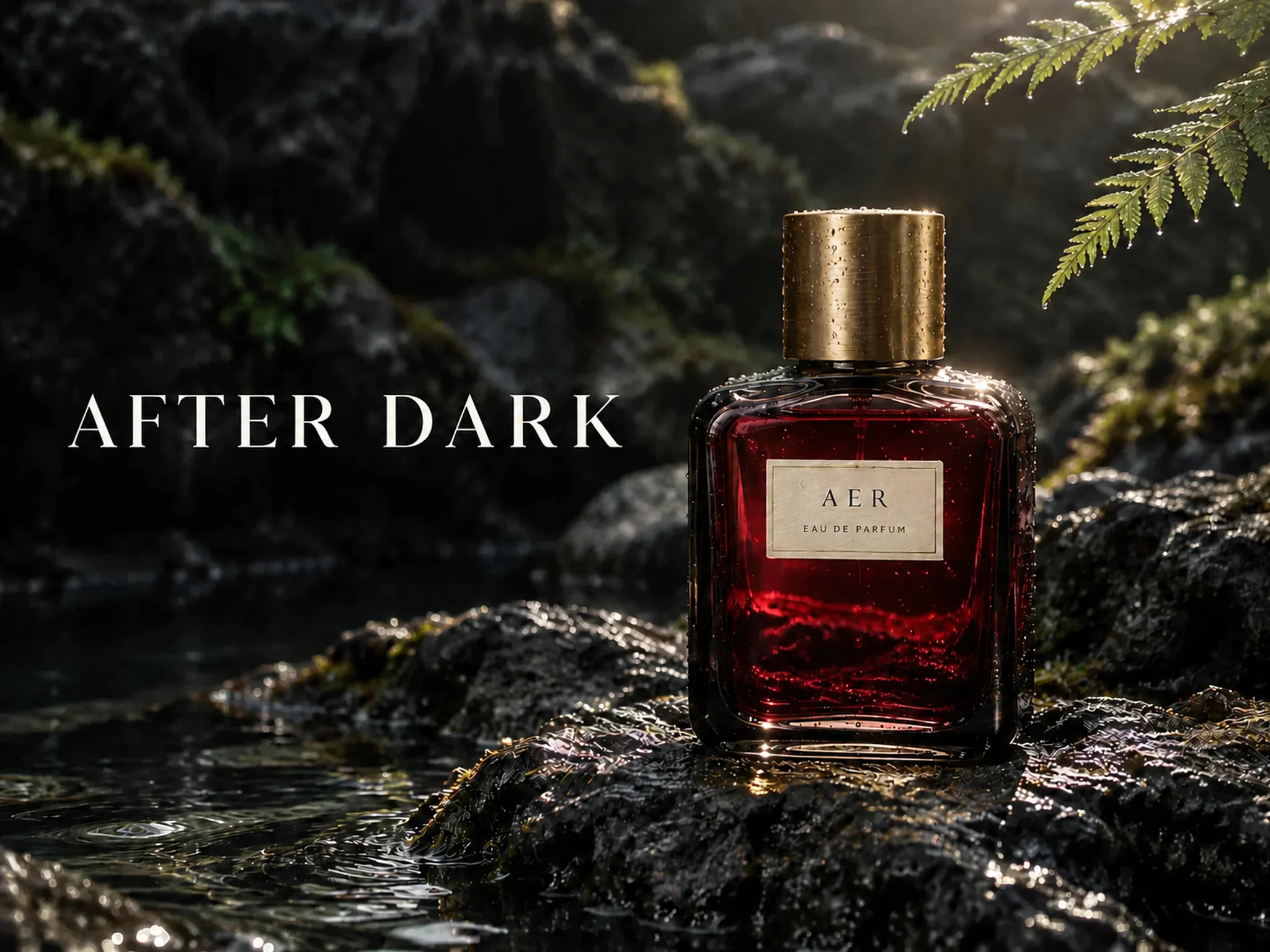
The red-liquid image becomes the next reference. The headline changes to AFTER DARK; compare the images to see what carries through.
This workflow uses a reference image for each new request. Local edits can still alter other details; compare the complete outputs.
Try GPT Image 2.5 FreeKnow what you want before you spend credits. Sunburst Image is a workspace for GPT Image 2.5 generation, reference inputs, and image downloads.
Name the subject, setting, light, and intended use in your prompt.
Upload source images and describe what you want to change.
Review the estimate beside Generate and compare it with your balance.
Use progress and recovery messages to choose your next step.
Inspect text and product details, then download the result you want to use.
Check your account offer and balance. Generation requires credits.
Review service terms and your source-image rights before commercial use.
Keep each image run within your budget. Check your balance and the GPT Image 2.5 credit estimate beside Generate before you submit.
Choose your next step with the facts in view. Review GPT Image 2.5 access, model choices, reference inputs, and output settings below.
GPT Image 2.5 is OpenAI’s image generation and editing model family, announced on September 8, 2026. On Sunburst Image, use a prompt and optional reference images to create downloadable still images.
Check the current account offer and your credit balance before generating. Image runs use credits. A sign-up offer does not guarantee enough credits for every model.
GPT Image 2.5 Flare costs 6 credits an image and Sunburst costs 10, at 1K, 2K and 4K alike. The output size does not change the price; the model does. The estimate beside Generate always shows the rate for what you have selected, so check it against your balance before you submit.
OpenAI ships GPT Image 2.5 as two checkpoints: Flare for speed and Sunburst for detailed editing work. Both are in the model picker here and are priced separately. Sunburst Image is this website's brand name; it is not the same thing as the Sunburst checkpoint.
Yes. Upload reference images and describe the change you want. Name the details that should stay the same, then inspect the result. Do not assume every object or word will remain unchanged.
Choose 1K, 2K, or 4K resolution in the generator settings. This workspace currently requests JPEG images. The supplier also lists PNG and WebP, but this generator does not yet offer a format picker.
Start with the subject, setting, light, and intended output. For example: “A blue ceramic mug on a cream table, soft window light, product-listing image.” Use prompt enhancement to refine your draft.
Use the generator on this website and follow the account prompts. You do not need to paste an API key into the image prompt. ChatGPT’s Sketch and comment tools are separate product features.
Check the generation status and history before starting another run. Keep your draft and follow the displayed recovery instructions. A long wait alone does not tell you whether the task has failed.
Review the current service terms and the rights to your uploaded material before commercial use. Do not assume downloads lack provenance metadata or invisible marks. Inspect text and product details before publishing.
Bring the idea you have been trying to explain. Add your prompt to GPT Image 2.5 and create a still image to review.